LESS PAPERWORK. MORE LIFE.
Your iPhone.
Your new fax machine.
Scan, sign, and send documents from your iPhone. All the faxing you need, without the machine.
For iPhone · iOS 18.0+ · In-app purchases
FROM PAPER TO SENT
Three steps. One less errand.
A familiar task, made a little simpler. Prepare your document and send it wherever your day takes you.
- 01
Make it digital.
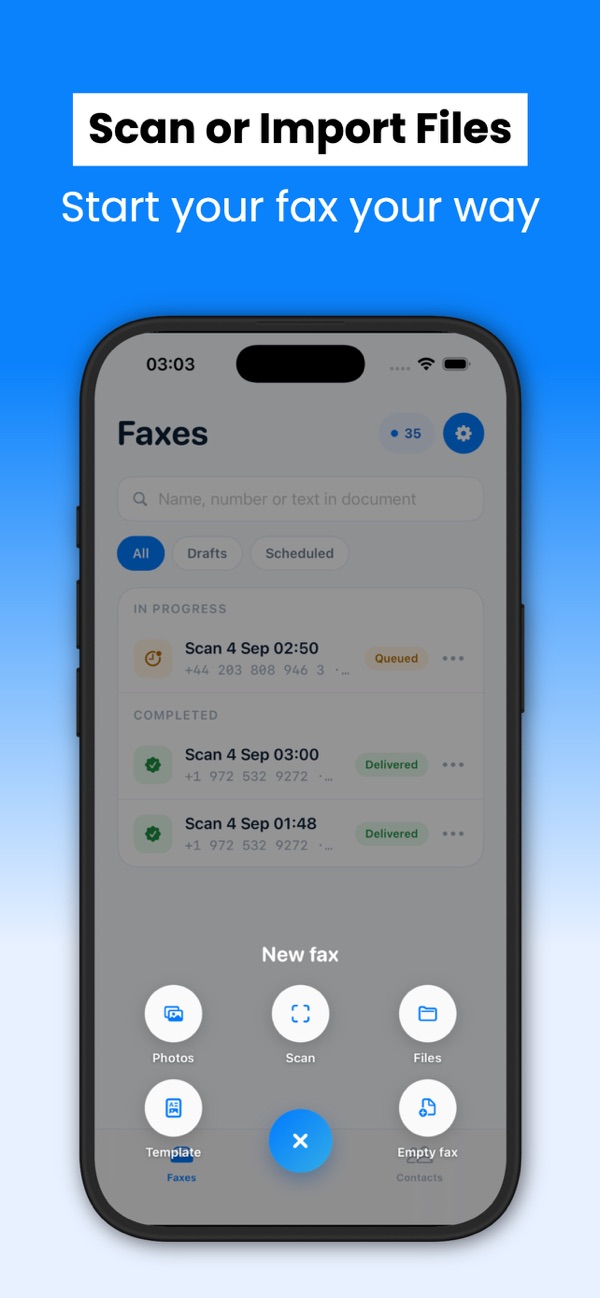
Scan a paper document with your camera, or import a file you already have.
- 02
Make it ready.
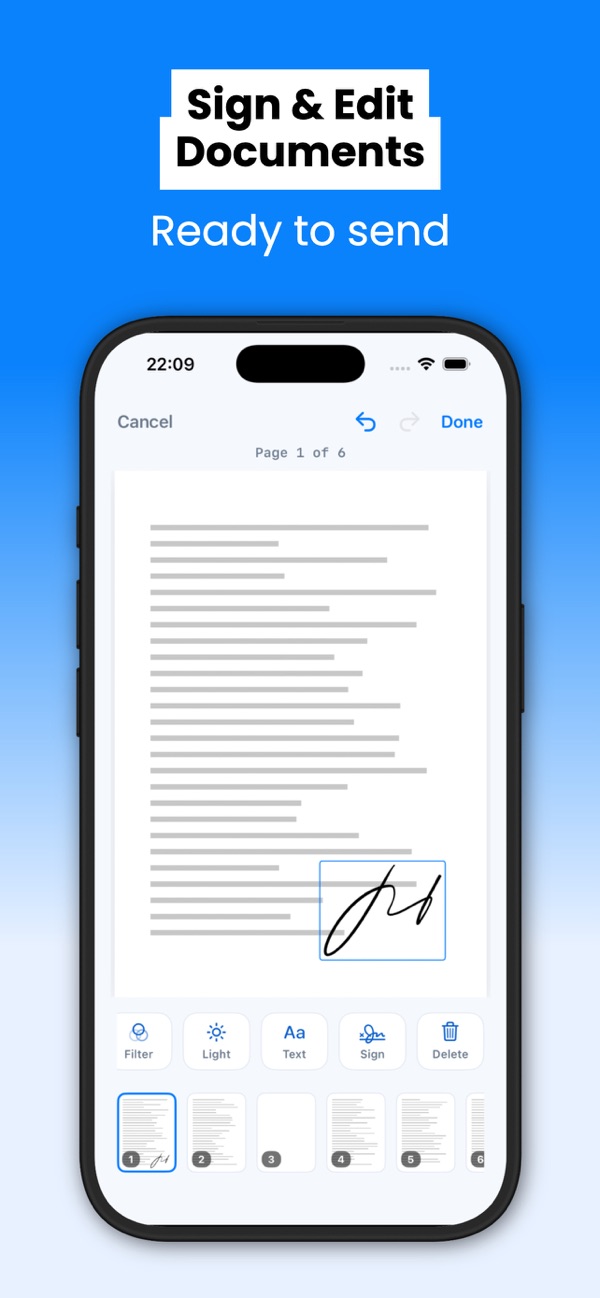
Review your pages, add a signature, and include a cover page if you need one.
- 03
Send. Then carry on.
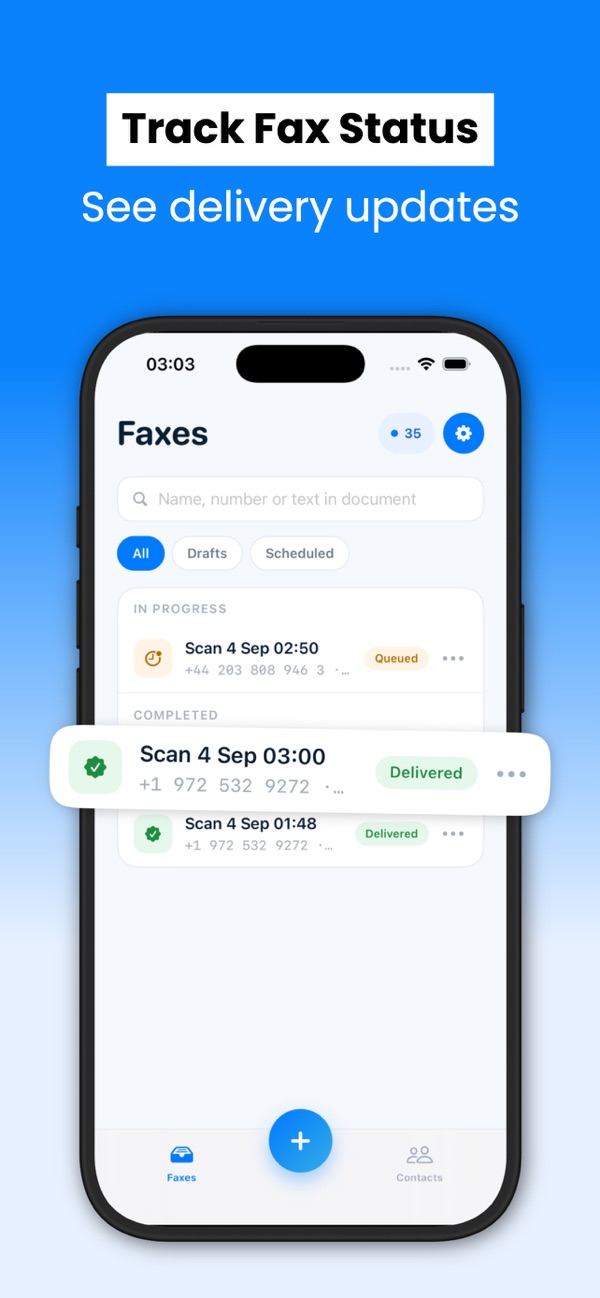
Enter the fax number, send your document, and check its delivery status in the app.
A SMALLER WAY TO DO MORE
Everything for the fax.
Nothing for your desk.
From the first scan to the delivery update, keep the whole process on your iPhone.
Scan & import
Start with a paper page or an existing file. Keep your documents together before sending.
Sign & add a cover
Put the finishing touches on your document without printing it first.
Send to your recipients
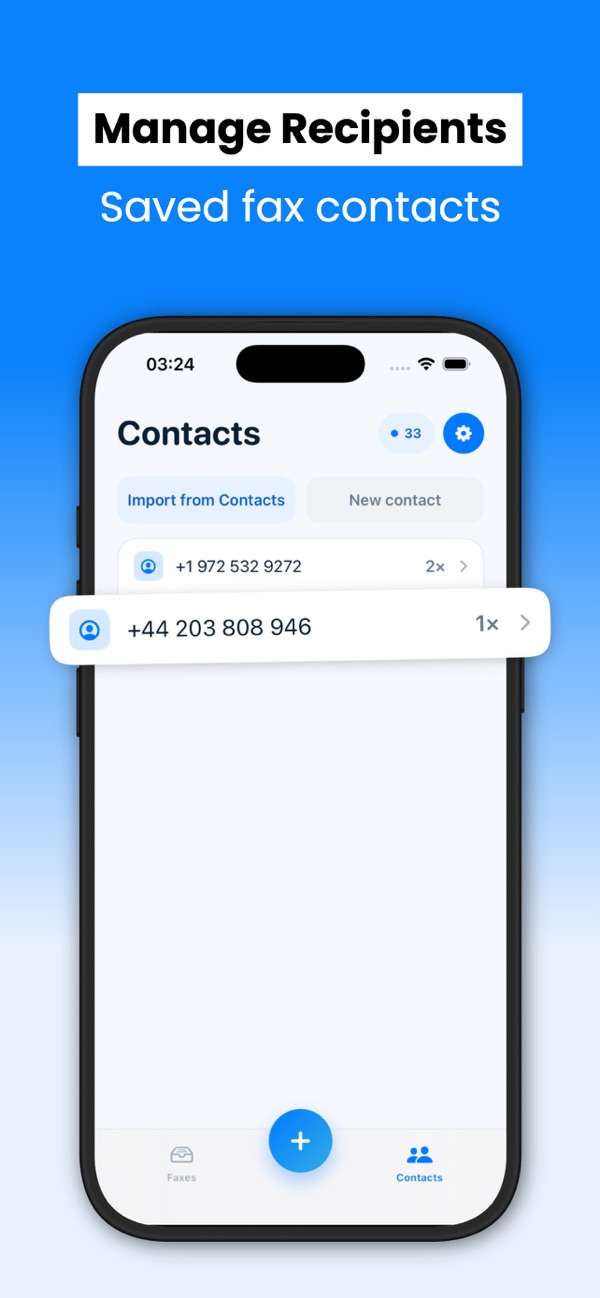
Add more than one recipient and save fax contacts for next time.
Keep track of it all
Check delivery status and revisit sent faxes in your history.
FAXPRO, UP CLOSE
Meet your pocket-sized paperwork kit.
Actual app screens, shown in English.
FOR THE EVERYDAY ADMIN
The form. The contract.
The thing that still needs a fax.
When someone asks you to fax a document, your next step can start right on your phone. Review the recipient and every page before you send.
Free to download.
Credits to send.
FaxPro uses credits for fax sending. Subscription options and the applicable price are shown in the app before you buy. Available plans and pricing can vary by region.
View FaxPro on the App StoreHow do I send a fax from my iPhone?
Open FaxPro, scan a document or import a file, review your pages, and enter the recipient’s fax number. Use the credits shown in the app to send, then follow its delivery status.
Do I need a fax machine or a phone line?
You do not need a fax machine or a dedicated fax line to send with FaxPro. Use your iPhone and an internet connection. The recipient needs a working fax number.
Can I sign a document before sending it?
Yes. You can add a signature and a cover page while preparing a fax in FaxPro. Review the final pages before you send.
Can I see whether my fax was delivered?
FaxPro shows delivery status and keeps sent faxes in your history. For time-sensitive documents, check the result and confirm receipt with the recipient when needed.
Is FaxPro free?
FaxPro is free to download. Sending faxes requires credits. Review the subscription, included credits, and current regional price on the in-app purchase screen before purchasing.
What happens to documents when I send a fax?
Documents stay on your device until you send them. Sending transmits the document and recipient information to the fax provider. Read the Privacy Policy for providers, retention, permissions, and your choices.
Privacy PolicyFAXPRO — FAX FROM YOUR PHONE
Less time faxing.
More time for everything else.
Give your paperwork a simpler way out.
Download on theApp Store